




Songling
Touch and files
Made for fingers first, with a keyboard and trackpad welcome, and files that go where you want them.
With your fingers
- Drag a chord. Put a finger on a chord and move it: along the strip, or from the key row into your song.
- Double tap to add. Double tap a chord in the key row and it joins your song.
- Two fingers to scroll. In the melody grid, the Sketch and the chord strips, one finger draws, picks or sweeps, and two fingers scroll.
- Grips on every note. Both ends of a note have a grip a fingertip can catch.
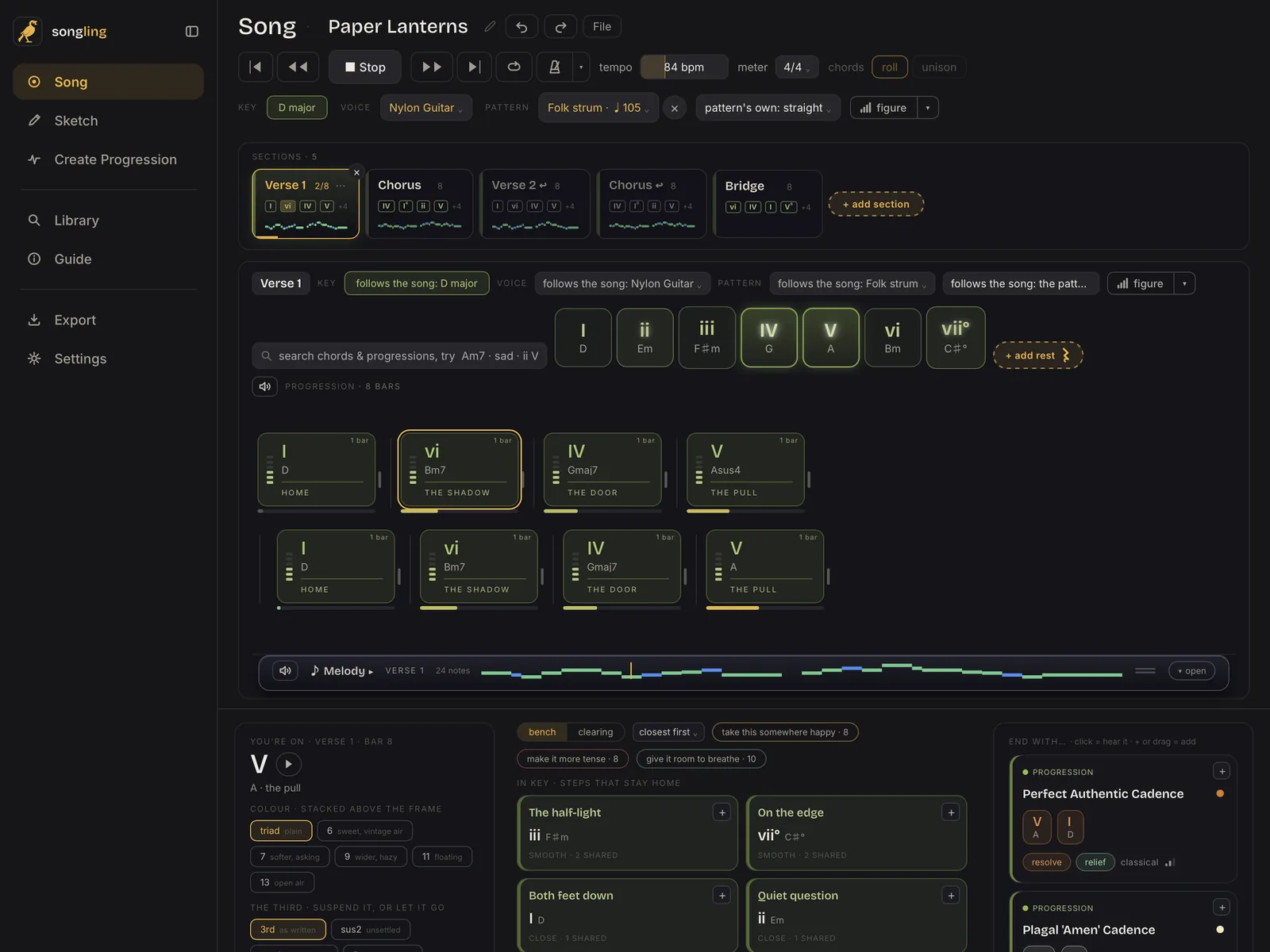
- Undo, always in reach. Undo and Redo sit beside File on the Song page, the Sketch and Create Progression.
Keys and pointers
A keyboard
Keyboard shortcuts work with a keyboard attached. The Guide lists them under Touch & keys.
Several at once
In the figure editor, Shift, Option and Command buttons stay down for your next tap, so you can pick several notes.
A trackpad or mouse
Works as well, for anyone who'd rather point.
Files in and out
- SaveFile, then save to file, sends a song, sketch or progression as a .songling file to Files, iCloud Drive, AirDrop or Mail.
- OpenIn Files, Mail or AirDrop, tap Share, then Songling. Or use File, then open file, inside the app.
- ExportExport a song or sketch as MIDI for your DAW, or MusicXML for a notation app.
- Share a linkSend a progression as a link. Anyone can open it on songling.app and hear it, with or without Songling.